SharePoint Admin Center trusted source setup
This guide explains how to fix a missing DocRead icon in SharePoint when external resources are blocked.
Issue
DocRead icon is not visible in SharePoint
Users may report that the DocRead icon is missing or not appearing within their SharePoint environment.
Cause
Microsoft introduced stricter controls on external resources. As part of this change, DocRead must be explicitly added as a trusted source in the SharePoint Admin Center.
If this configuration has not been completed, the DocRead icon will not display.
Solution
Add the DocRead CDN URL as a trusted source in SharePoint.
Steps to add DocRead as a trusted source
- Go to the SharePoint Admin Center.
- Navigate to the settings or security area where trusted sources or allowed domains are managed.
- Add the following URL as a trusted source:
https://cdn.docread.app - Save your changes.
- Refresh your SharePoint page. If needed, clear browser cache and reload.
Result
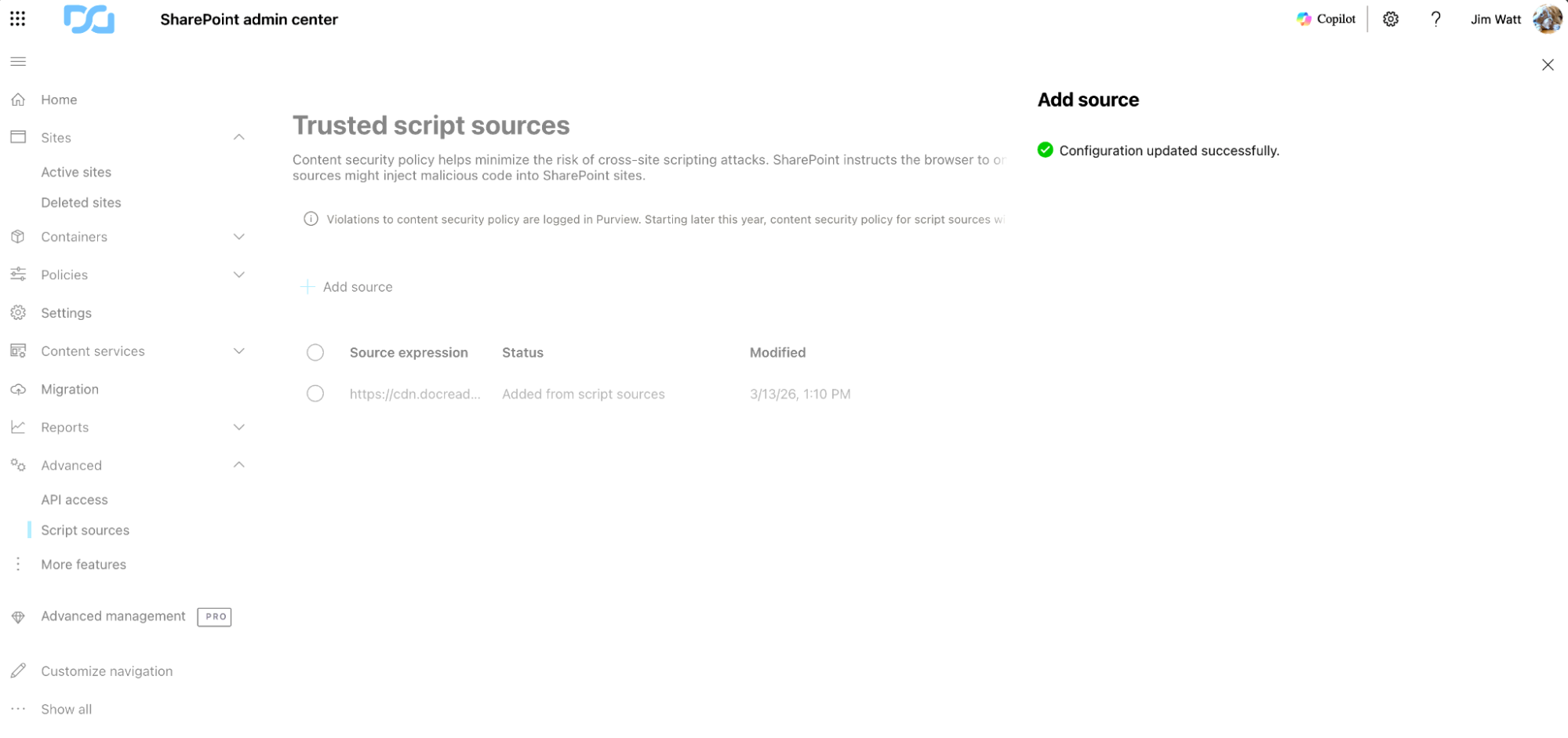
Once the trusted source has been added, the DocRead icon should appear correctly within SharePoint.
Additional notes
- Changes may take a few minutes to propagate.
- If the issue persists, check for additional network or browser restrictions blocking external resources.
- Contact your system administrator if you do not have access to the SharePoint Admin Center.