Creation of Quizzes
Follow these steps to create a quiz in DocRead:
- 1. Access the Quiz Section
- 2. Choose a Quiz Design
- 3. Add Questions
- 4. Configure Each Question
- 5. Set Quiz Details
- 6. Save and Finalize
- 7. Verify the Quiz
1. Access the Quiz Section
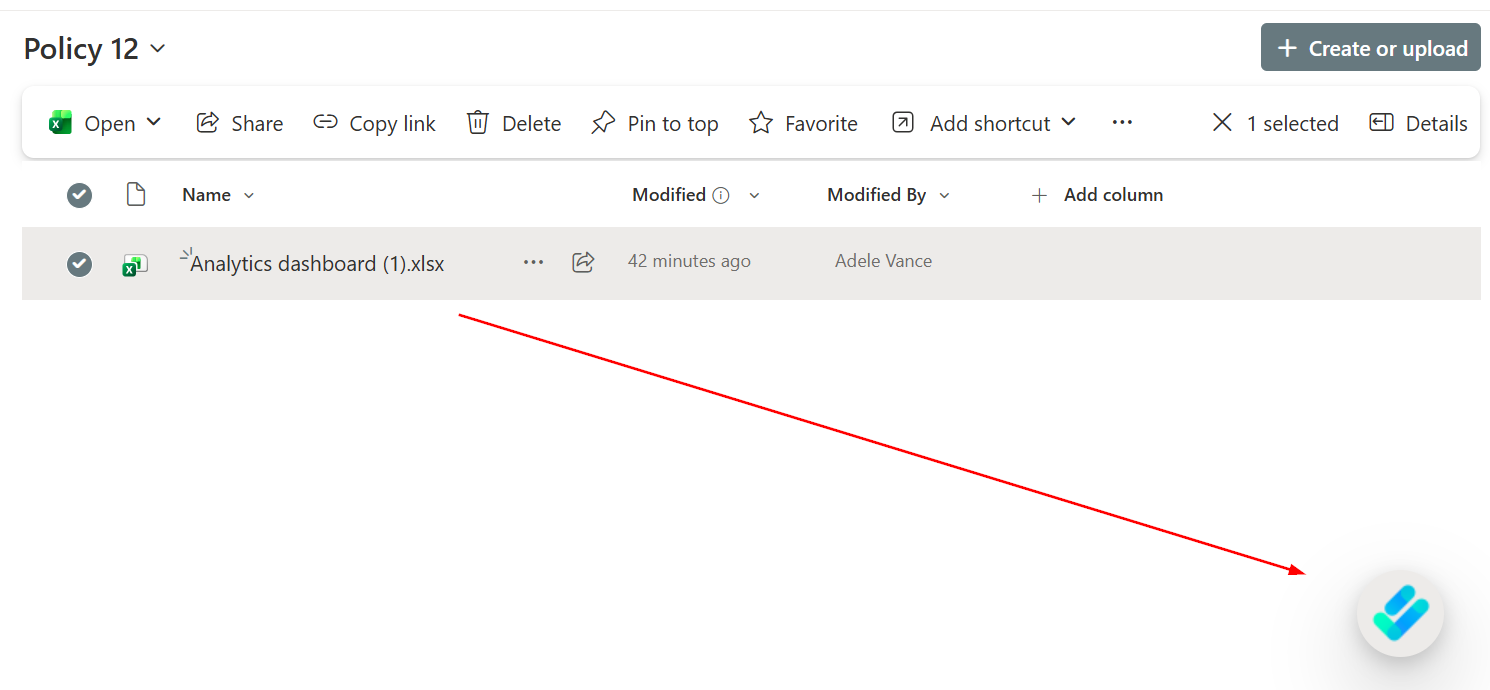
- Open the DocRead Cockpit Application.
- Click Quiz Designer from the main menu.
- Select Create Quiz.
2. Choose a Quiz Design
- In the Create Quizzes page, select your preferred design/template.
- Click or drag and drop the chosen design into the empty form area to begin building your quiz.
3. Add Questions
You can add different types of questions depending on your needs:
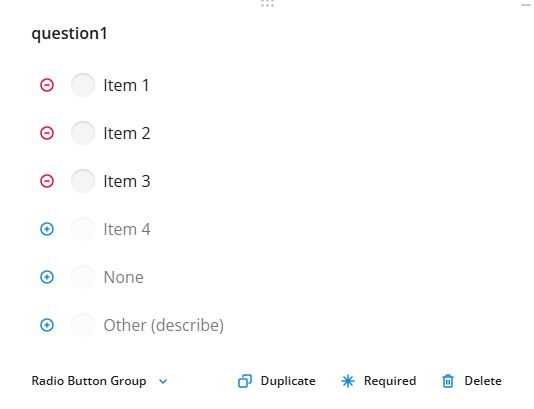
- Radio Button Group - for single-answer multiple choice
- Checkboxes - for multiple-answer questions
- Dropdown - for a compact list of options
- Rating Scale - for feedback or scoring (e.g., 1-5)
- Yes/No - for simple binary questions

4. Configure Each Question
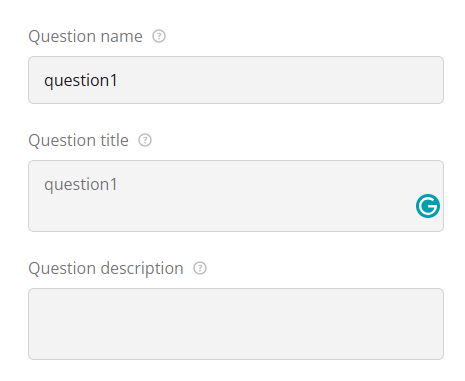
- Enter the Question name.
- Add the answer choices (if applicable).
- You have the option to set a Correct Answer for scoring purposes.
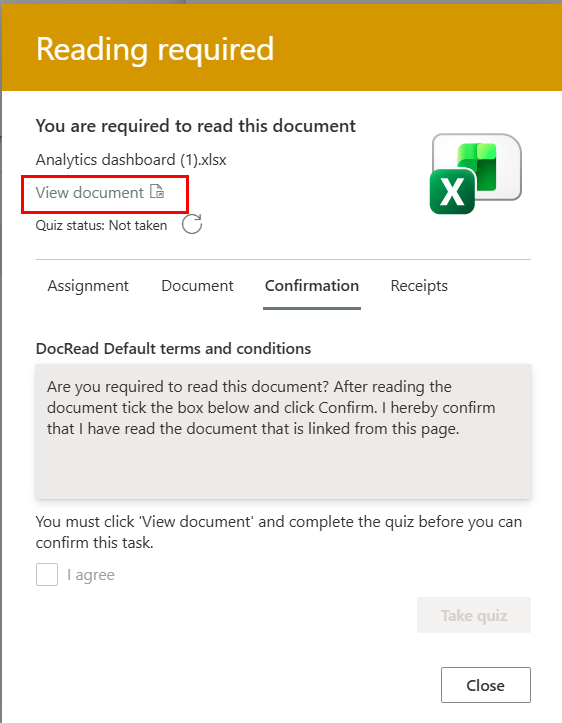
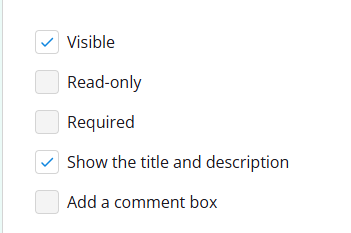
- Ensure that at least one question is marked as required.
- There is an option to set the question as read-only.
- Choose whether the title and description are visible to users.

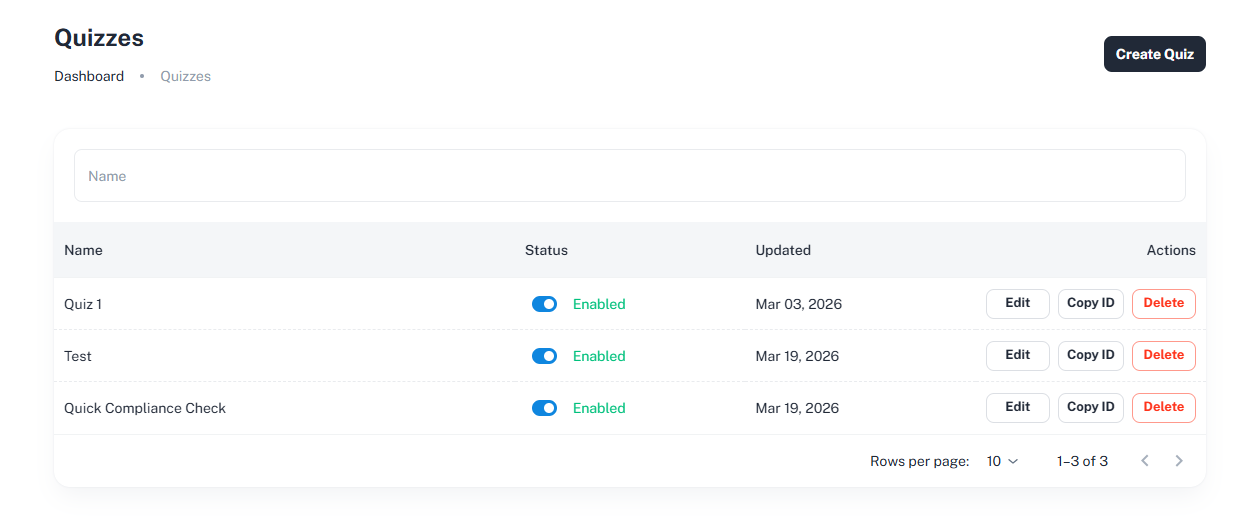
5. Set Quiz Details
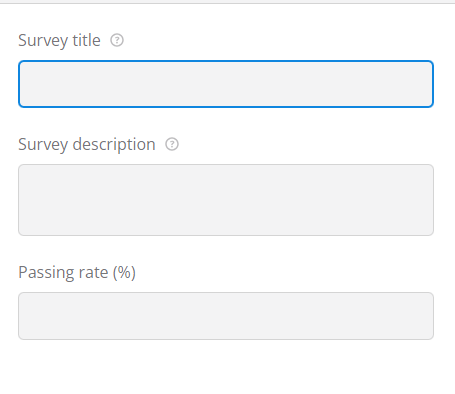
Fill out the general quiz information:
- Survey Title - the name of the quiz
- Survey Description - a brief explanation of the quiz content
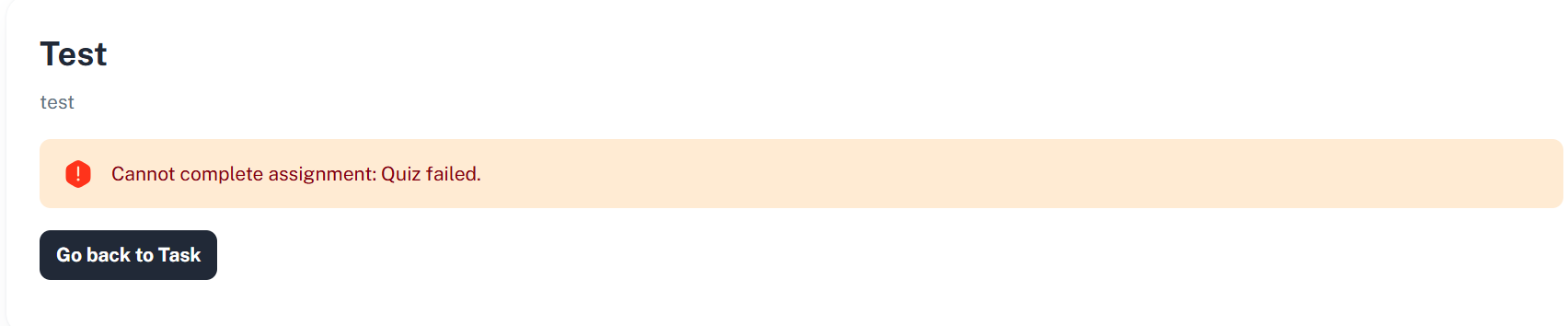
- Passing Rate - define the minimum score required to pass (e.g., 80%)
6. Save and Finalize
- Click Save & Exit once you have completed the setup.
- Click Confirm to finalize the quiz.
7. Verify the Quiz
- Return to the Quizzes section.
- Confirm that the newly created quiz appears in the list.