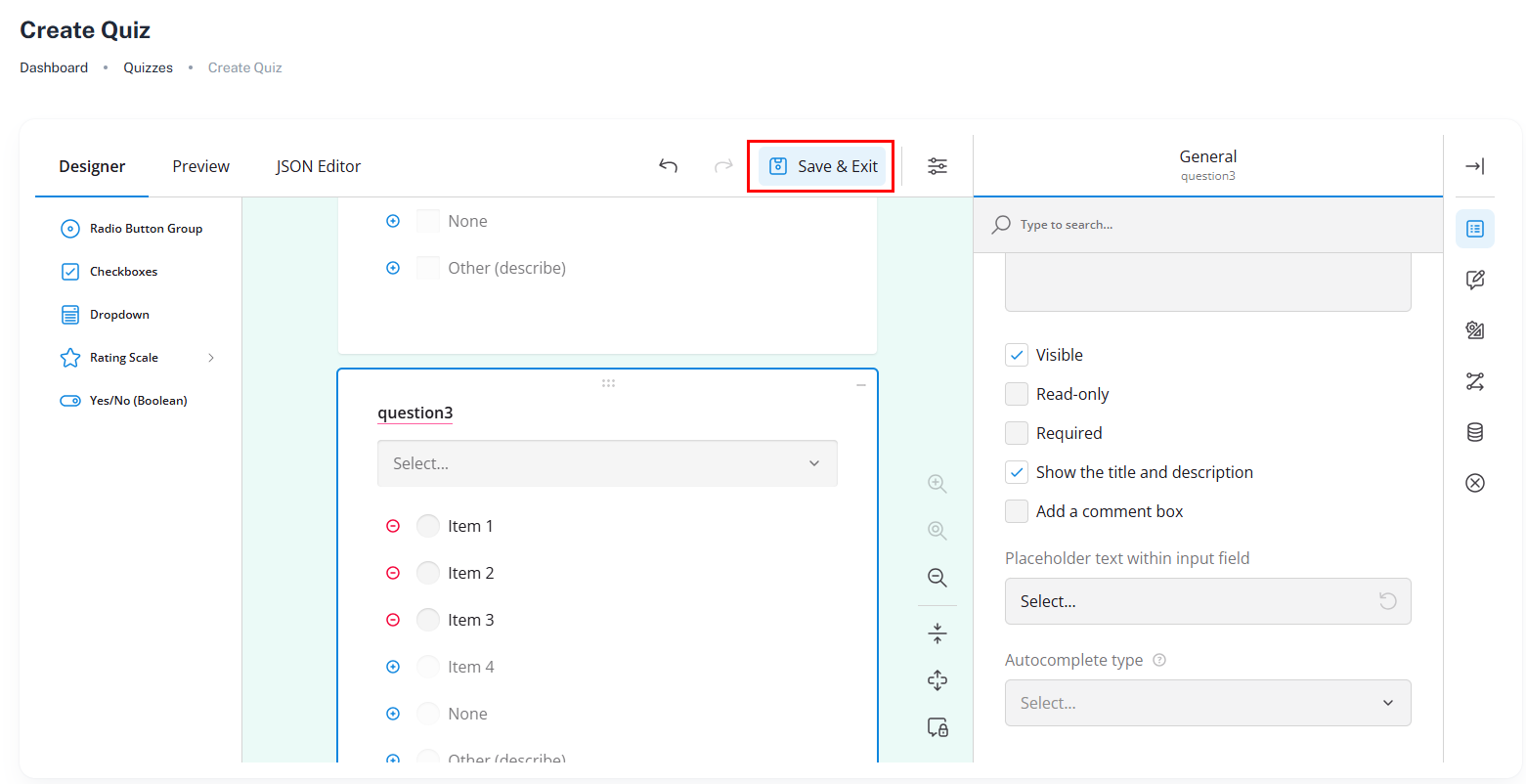
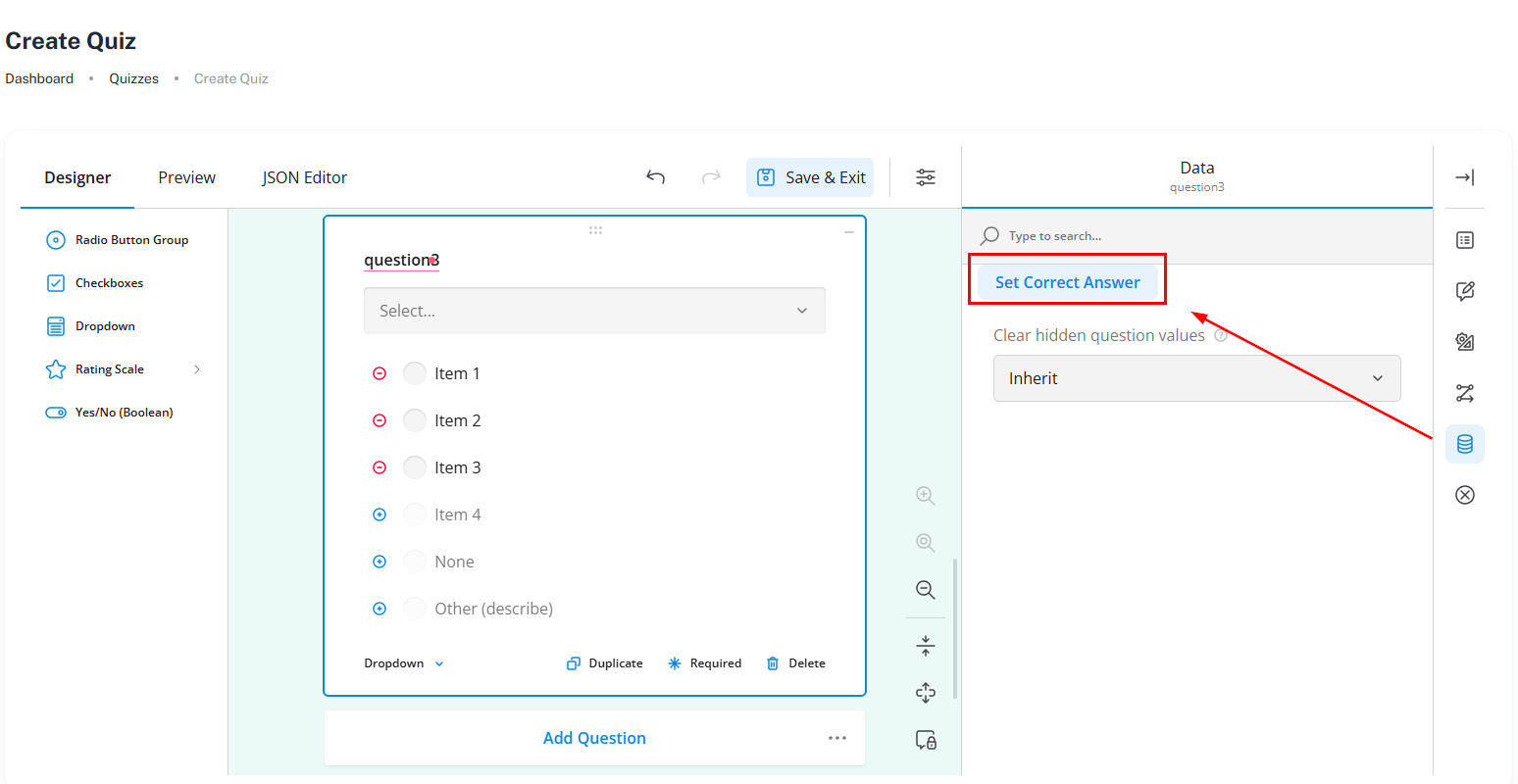
Assigning a Quiz to an Assignment
Follow these steps to link a quiz to a document and verify it from the user perspective:
- 1. Get the Quiz ID
- 2. Access the Document in SharePoint
- 3. Link the Quiz
- 4. Validate in User Dashboard
- 5. User Experience Check
1. Get the Quiz ID
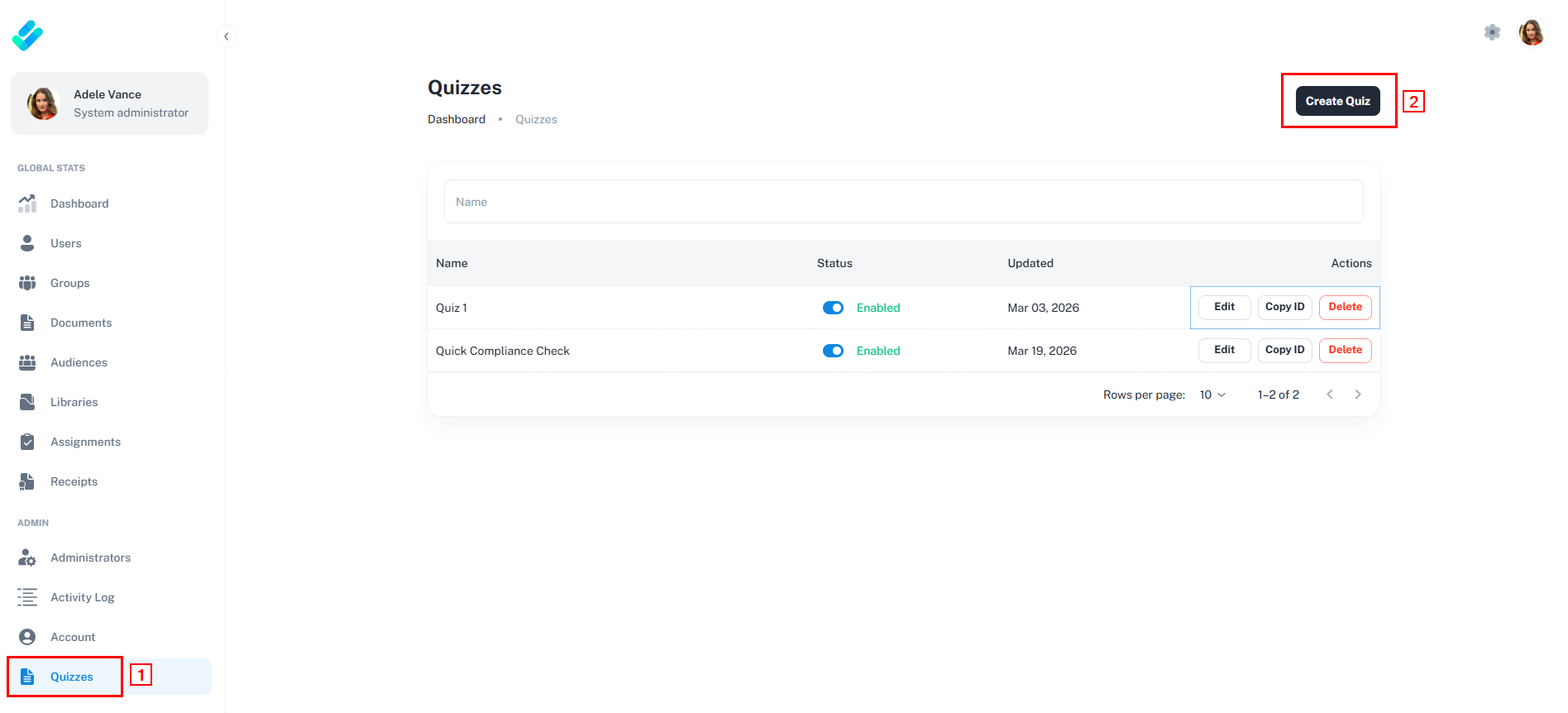
- Open DocRead Cockpit Application.
- Go to the Account section.
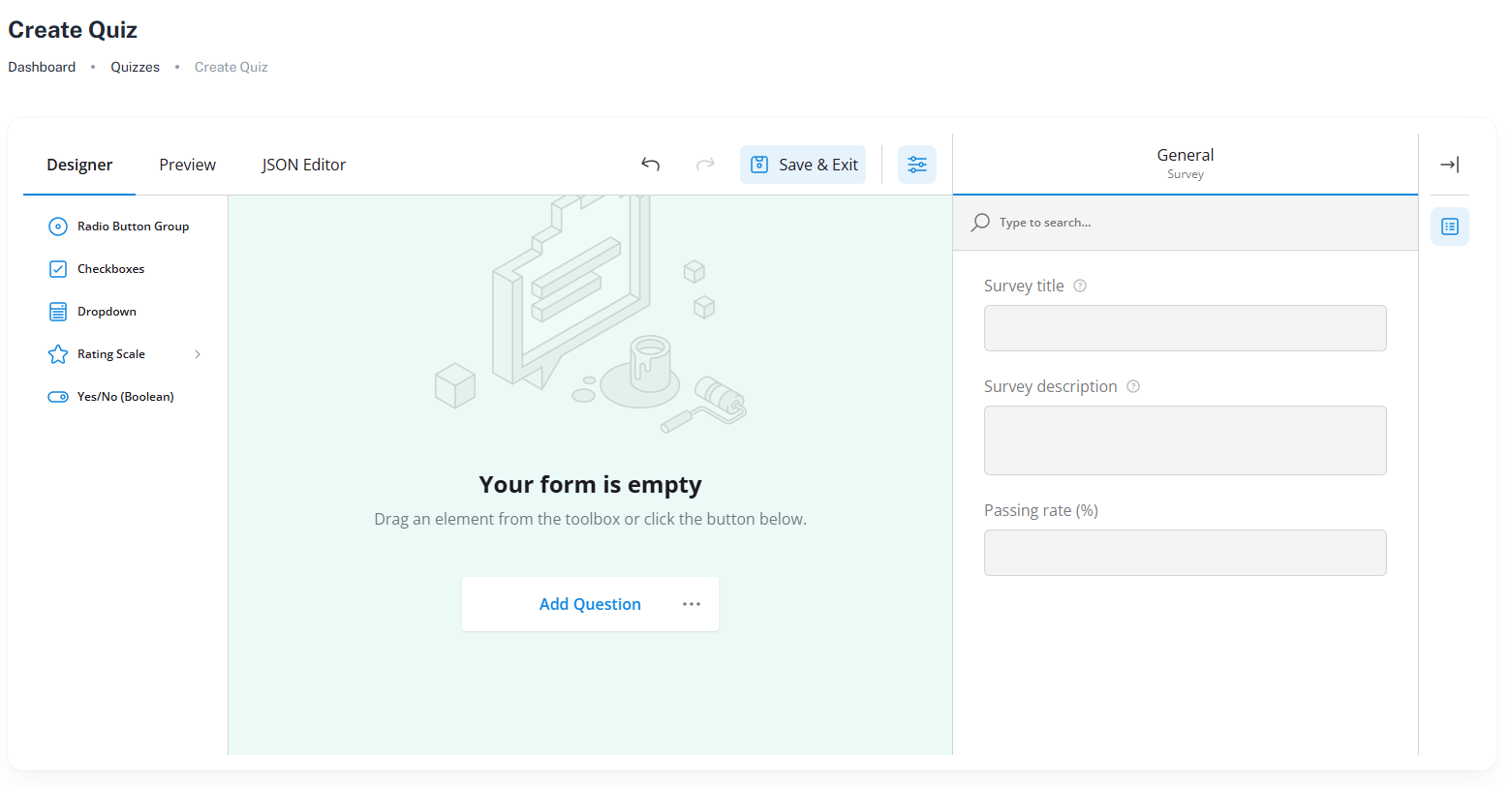
- Locate the Survey Name (quiz you want to assign).
- Click Copy ID to copy the Quiz/Survey ID.
2. Access the Document in SharePoint
- Go to SharePoint.
- Navigate to the Document Library where your document is stored.
- Find the document you want to assign the quiz to.
- Click the ellipsis (…) next to the document.
- Select DocRead Settings.
3. Link the Quiz
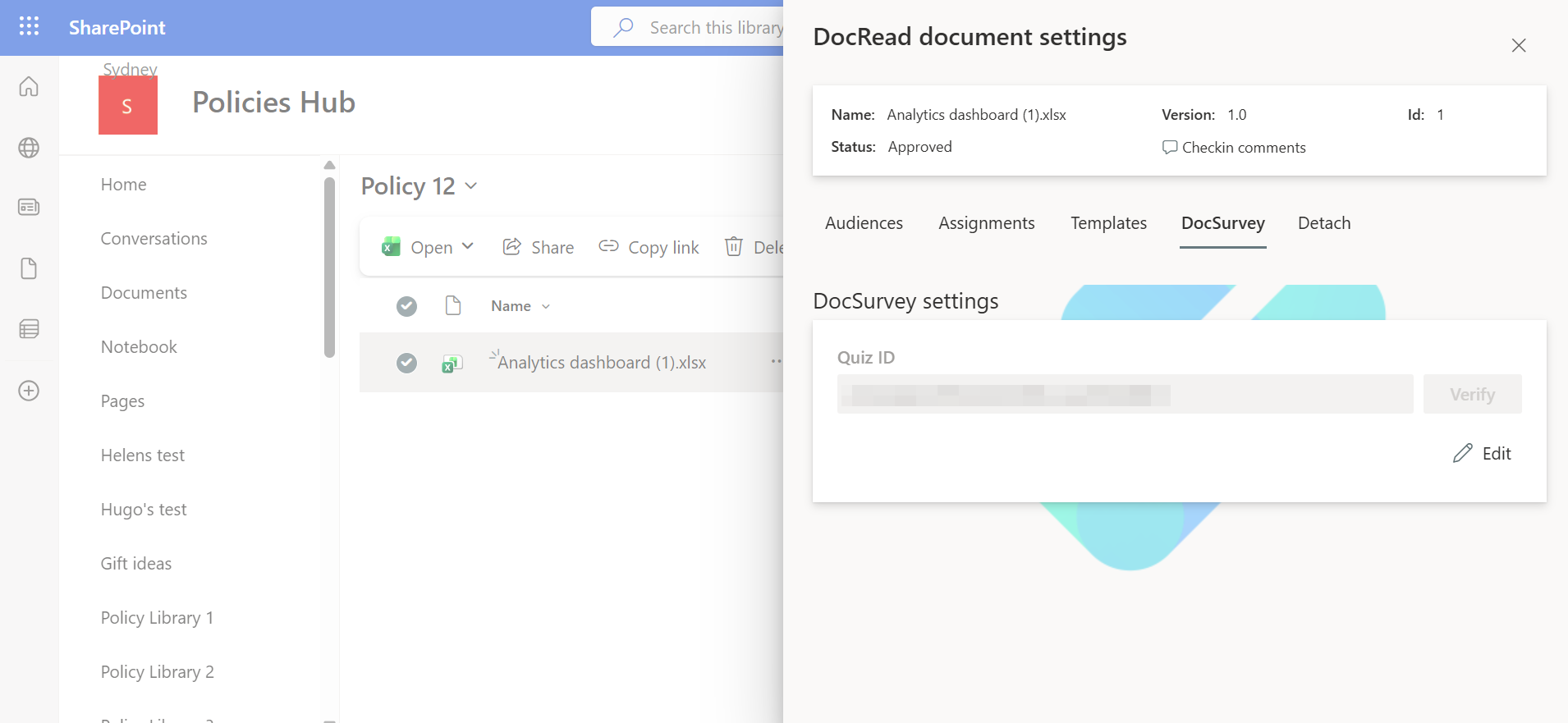
- A flyout panel for DocRead Document Settings will appear.
- Select DocSurvey.
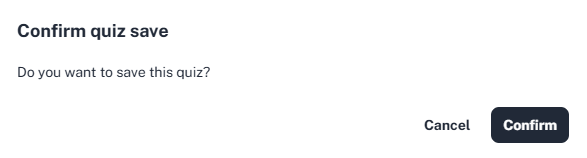
- Click Edit.
- Paste the Survey ID you copied earlier.
- Click Verify to ensure the quiz is properly linked.
4. Validate in User Dashboard
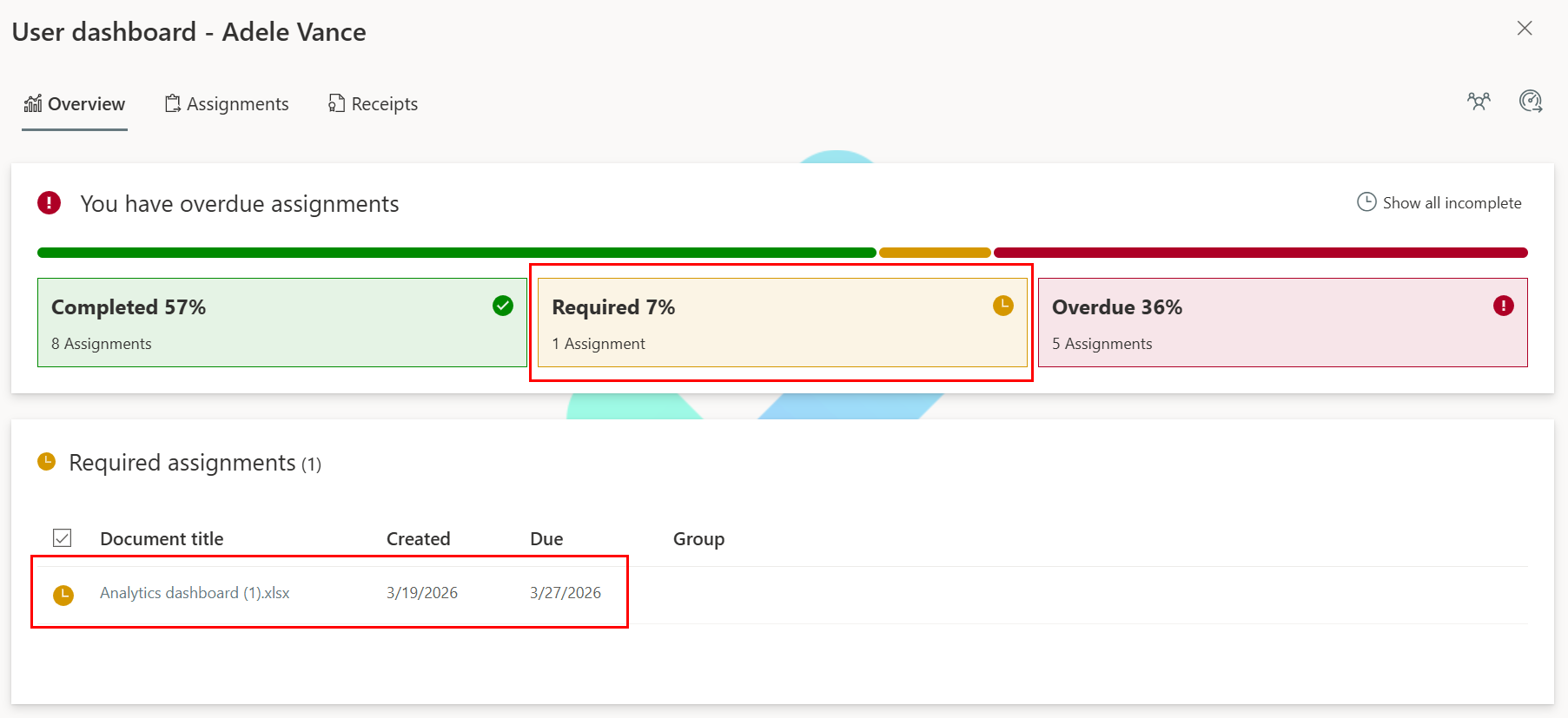
- Click the widget icon (lower-right corner) to open the User Dashboard.
- Select Required to filter assigned documents.
- Look for the document title you configured.
5. User Experience Check
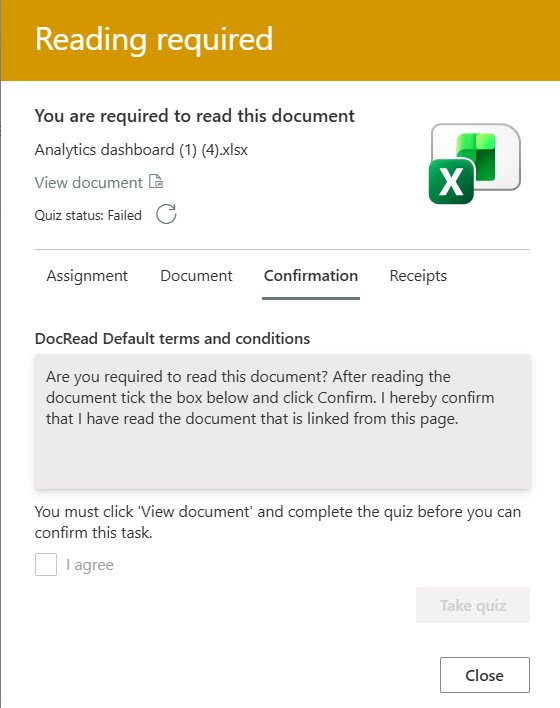
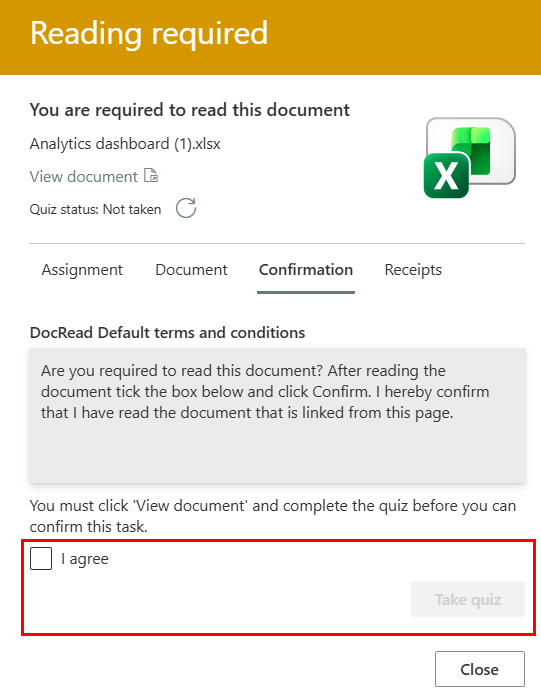
- Click the document title.
- Click View Document to open it.
- Once opened, the agreement checkbox will become clickable.
- Check the agreement box.
- Click Take Quiz to start the assigned quiz.
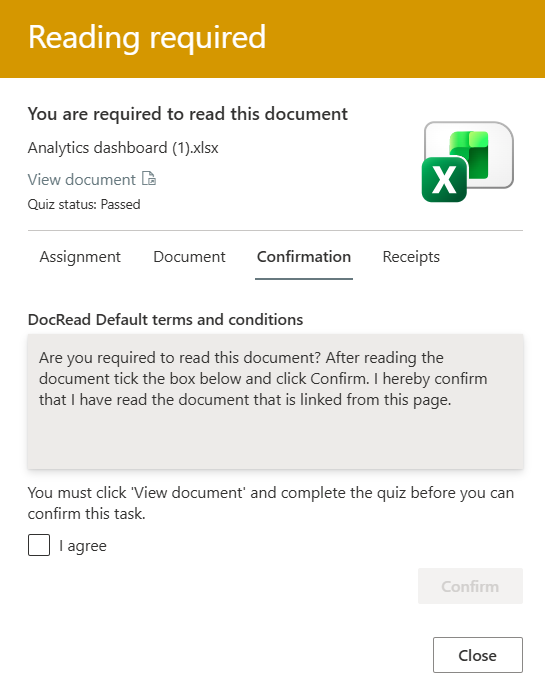
If you pass the quiz, this will appear on your screen:
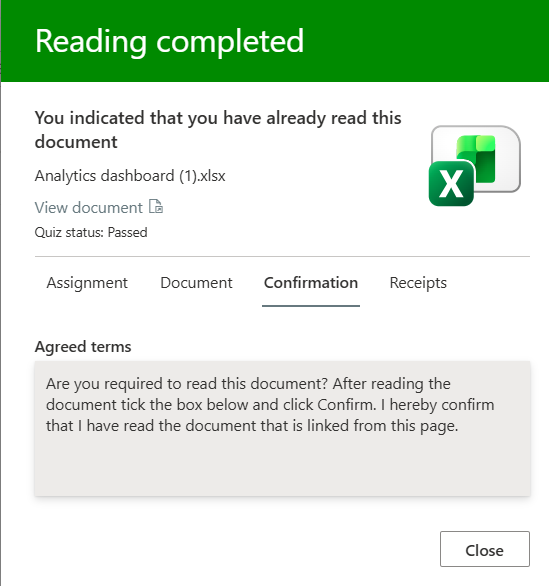
If you fail, there is an option to go back and retake the quiz.