How to Reset Overdue Assignments
This guide shows how you can reset an overdue assignment.
- Option 1: The Global Reset (Dashboard)
- Option 2: Document-Focused Reset
- Option 3: User-Focused Reset
- Summary: Which reset should I use?
What happens when you “Reset”?
Before using these tools, it is important to understand the logic behind the reset:
- Extension: Tasks with fixed due dates that have already passed will be automatically extended by 14 days from today.
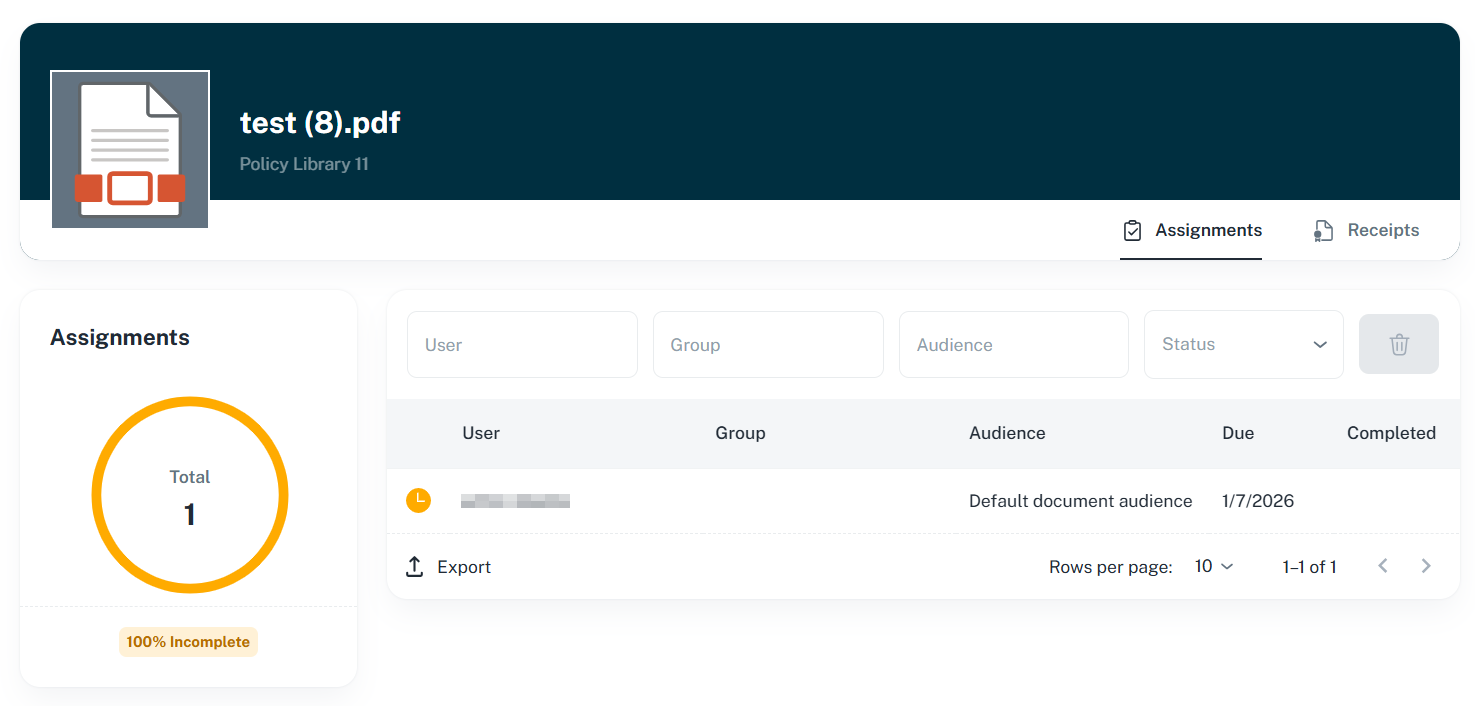
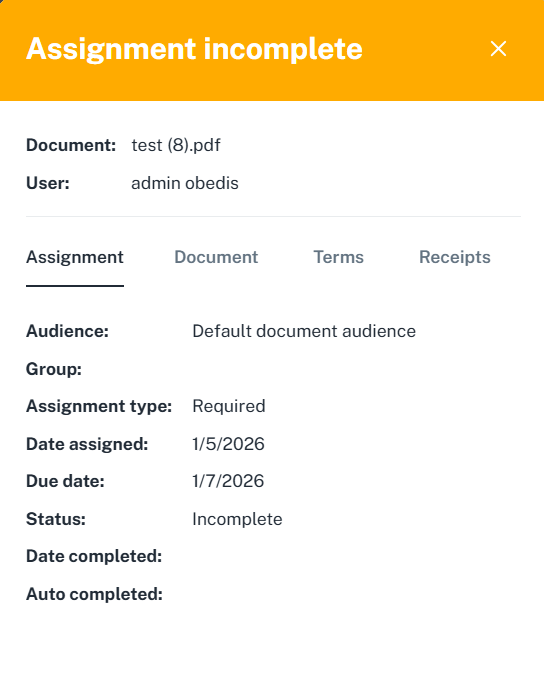
- Status: The task status will remain (or revert to) Incomplete, giving the user a new window to finish their reading.
- Finality: This action cannot be undone. Once reset, the original overdue date is replaced by the new 14-day extension.
Option 1: The Global Reset (Dashboard)
If your entire organization has a significant backlog and you want to “wipe the slate clean” for everyone, use the Dashboard reset.
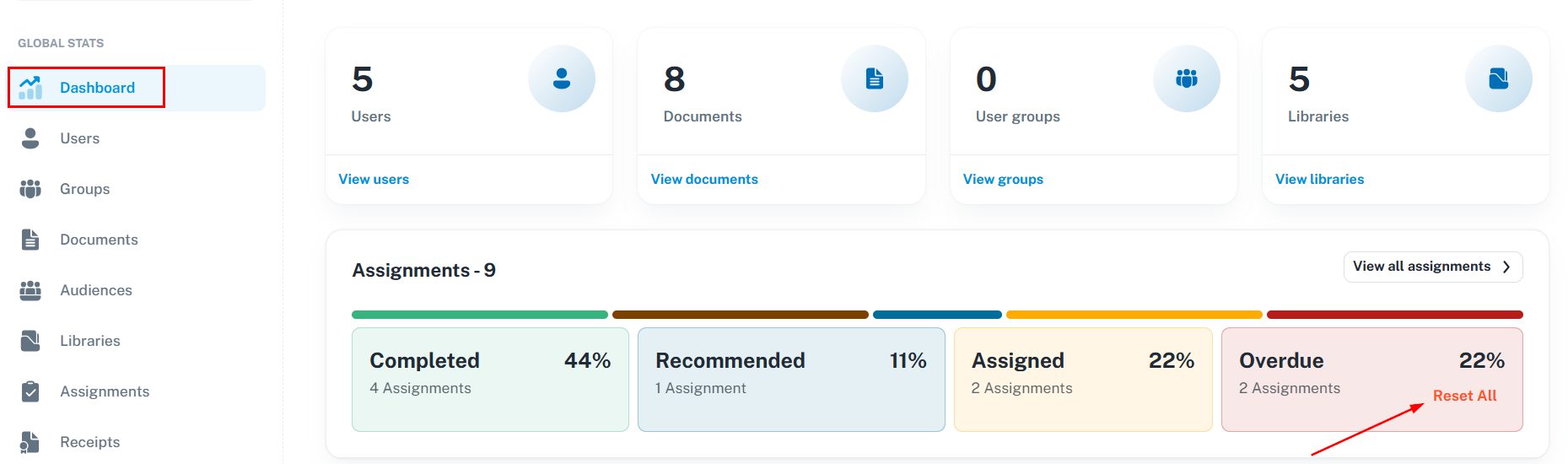
How to do it
- Navigate to your DocRead Dashboard.
- Locate the Overdue label card.
- Click the Reset All button.
-
A prompt will appear asking for confirmation. Click Reset to proceed.
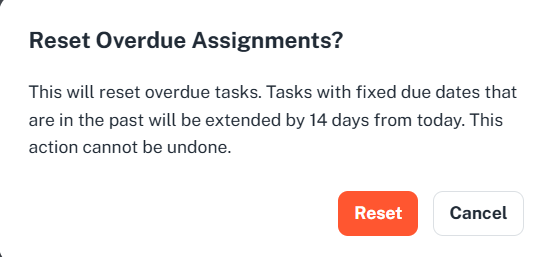
- Confirm the action when prompted.
This is a global action. It will reset every single overdue assignment across all documents and all users in your environment.
Option 2: Document-Focused Reset
Use this when a specific document (like a new Safety Manual) has a high number of overdue users, but you don’t want to affect other documents.
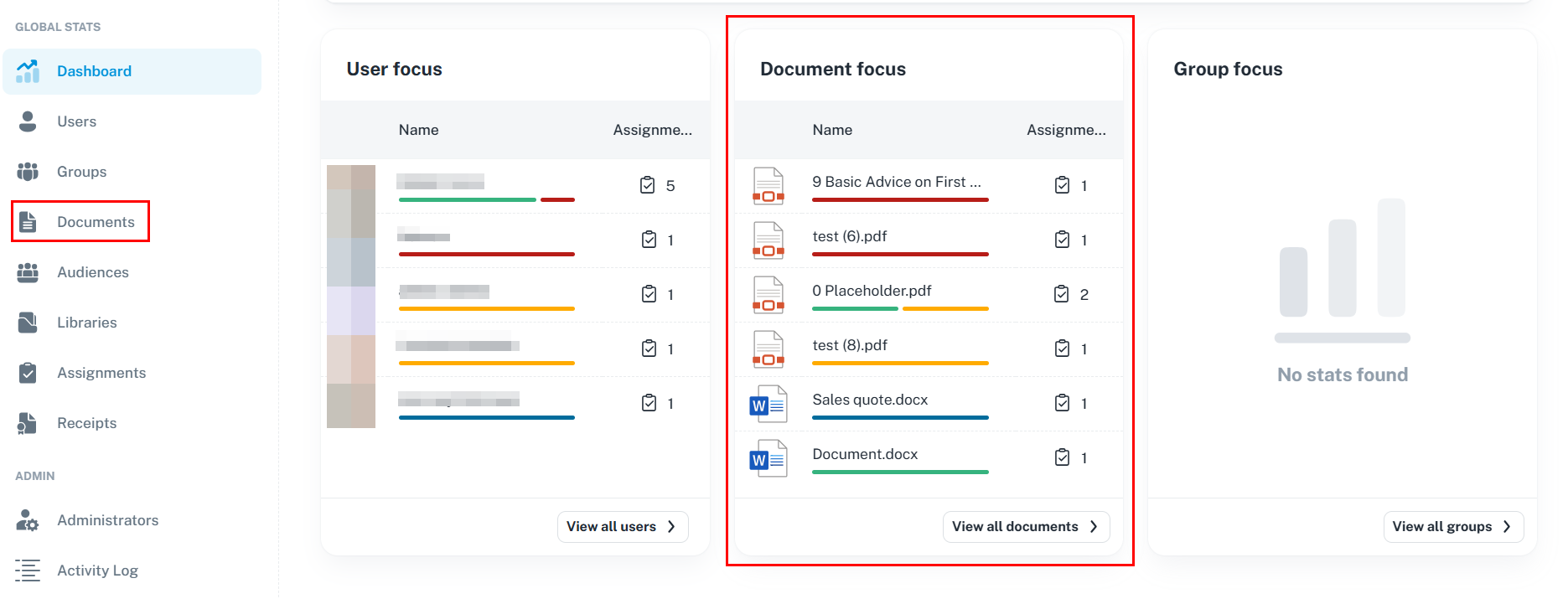
How to do it
- Go to the Document Focus section or tab on the left panel.
- Select the specific document that has overdue assignments.
- In the Document page, look for the Assignments tab.
-
Click the Reset Overdue button located beside the tab.
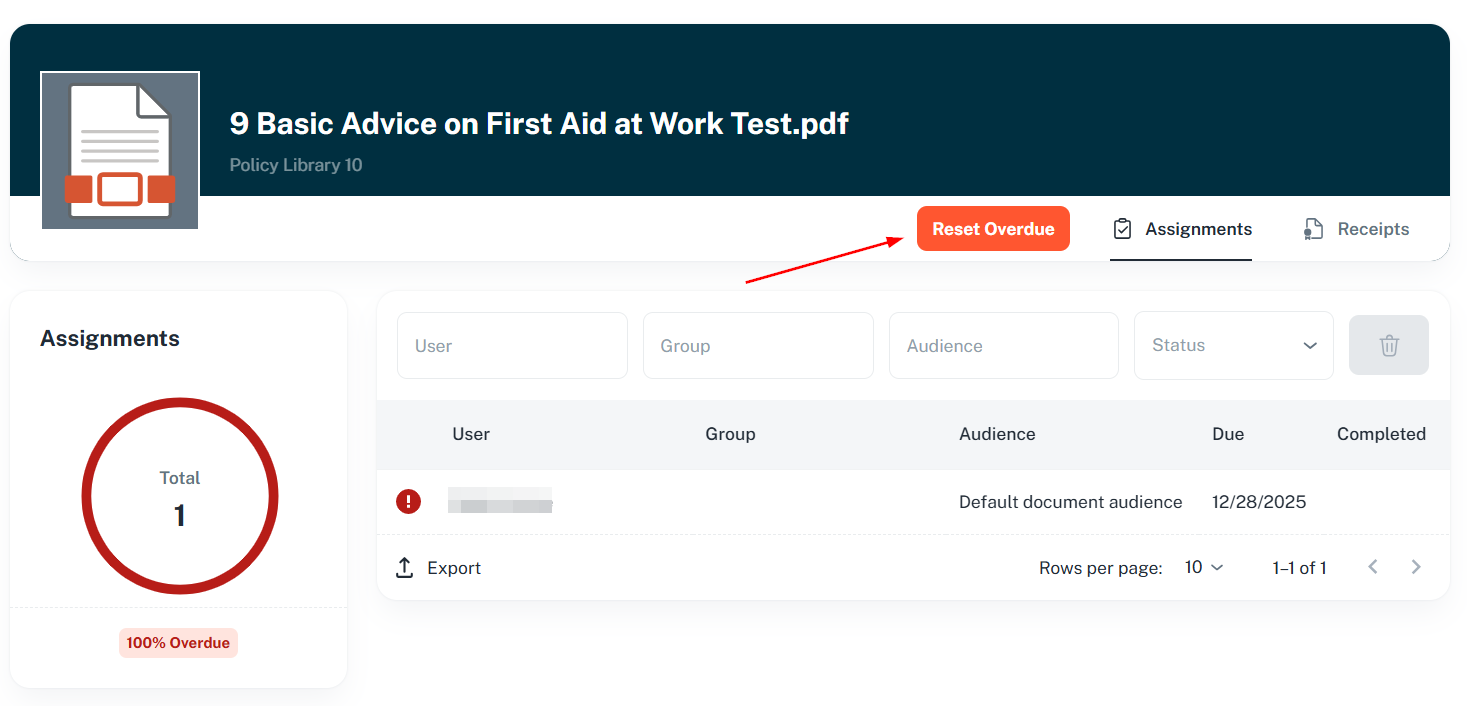
- Confirm the action when prompted.
Only the users assigned to this specific document will have their overdue tasks extended.
Option 3: User-Focused Reset
Sometimes, an individual user might have been on extended leave or faced technical issues. You can reset tasks for just one person without affecting their peers.
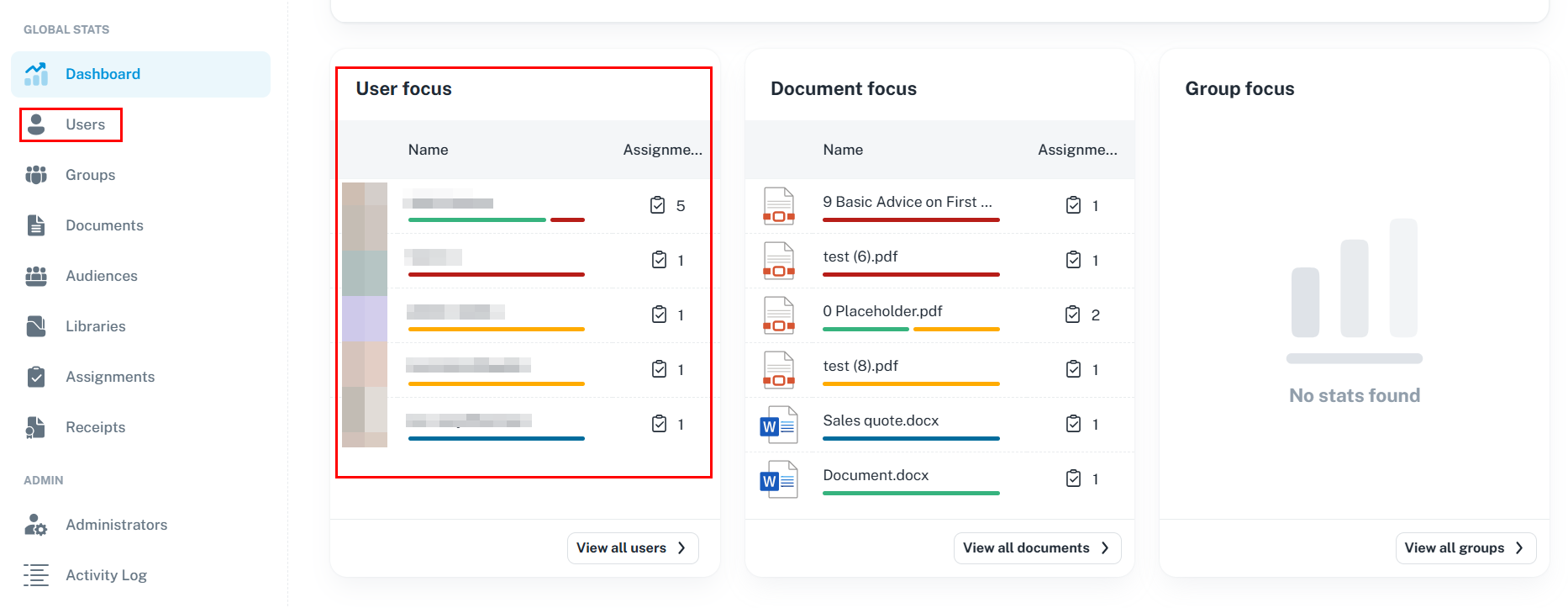
How to do it
- Go to the User Focus card/section.
- Search for and select the specific User.
- In the Document page, look for the Assignments tab.
- On their User Details page, locate the Reset Overdue button.
- Confirm the action when prompted.
Only this specific user’s overdue tasks will be reset. Other users assigned to the same documents will remain overdue.
Summary: Which reset should I use?
| Feature | Scope | Best Use Case |
|---|---|---|
| Dashboard Reset | Global (All Users/Docs) | Major system clean-up or annual resets. |
| Document Reset | Single Document | When a specific policy update was missed by many. |
| User Reset | Single Individual | Returning from leave or resolving individual issues. |
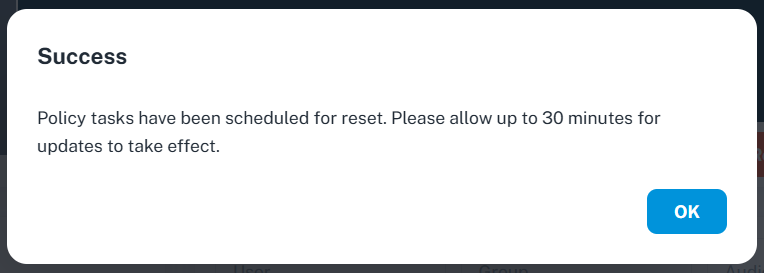
Confirmation & Success
Regardless of the method you choose, DocRead will show a “Successl” message. You will notice the due dates update immediately, and the tasks will appear as “Incomplete” for the affected users, giving them 14 days to achieve compliance.